
 📖Chuyên sâu
How to Use the Command Line in Linux and macOS
A complete beginner-to-competent guide to the shell: paths, permissions, pipes, processes, your shell config, and a backup script with the four lines of ceremony that separate a script that fails loudly from one that fails silently. Every command verified on both macOS (BSD) and Linux (GNU).
CuongThai
30 tháng 7, 2026 · 28 phút đọc · 2413 lượt xem
Sooner or later something pushes you here. A deploy fails and the only clue is on a server with no desktop. A tutorial's first line is npm create vite@latest and there is no button to press. Or you watch someone rename three hundred files in one line while you would still be dragging the first one.
The command line is not a test of character and it is not nostalgia. It is a way of talking to a computer where the nouns and verbs stay put — the commands you learn today will still work in ten years, on a laptop, in a Docker container, over SSH on a machine in another country.
This guide starts from zero and goes as far as writing a script you would trust in a deploy. Every command here was run before it was written down, on macOS and — where the two differ — inside a Debian container, because the differences are exactly where guides usually lie to you.
Terminal, shell, prompt: three words for three things
People use these interchangeably and then get confused when advice doesn't fit.
The terminal is the window. Terminal.app on macOS, GNOME Terminal or Konsole on Linux, iTerm2 or Ghostty or WezTerm if you install one. It draws text and forwards your keystrokes. That's it.
The shell is the program running inside that window: it reads what you type, figures out what you meant, runs it, and prints the result. On macOS since Catalina the default shell is zsh. On most Linux distributions it is bash. They are 95% the same and everything in this guide works in both; where they differ, I say so.
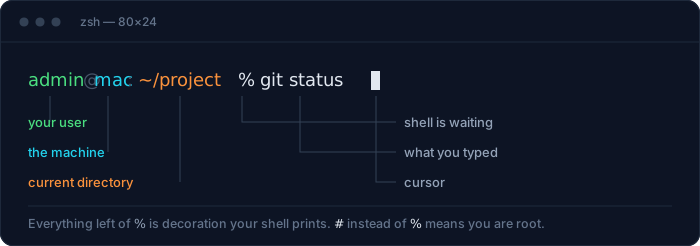
The prompt is what the shell prints when it's ready for you.
Two details from that picture pay off immediately. The last character is % (zsh) or $ (bash) for a normal user, and # when you are root — so if you see #, every command you type can delete anything on the machine. And the directory shown is where your commands will land. Half of all beginner mistakes are running the right command in the wrong directory.
You can check what shell you're in:
echo $SHELL      # /bin/zsh
zsh --version    # zsh 5.9 (arm64-apple-darwin25.0)
uname -s         # Darwin on macOS, Linux on Linux
$SHELL is your login shell, which is not necessarily the one running right now — if you typed bash a minute ago you're in bash while $SHELL still says zsh. echo $0 tells you the truth about the current process.
Three questions, three commands
Every session starts with the same three questions: where am I, what's here, how do I get somewhere else.
pwd     # print working directory — where am I
ls      # list — what's here
cd      # change directory — go somewhere else
That's the whole navigation vocabulary. pwd on my machine right now:
/private/tmp/claude-501/scratchpad/cli-lab
A path is just directions to a place, written with / between the steps. There are two ways to write one, and mixing them up is the second-most common beginner mistake.
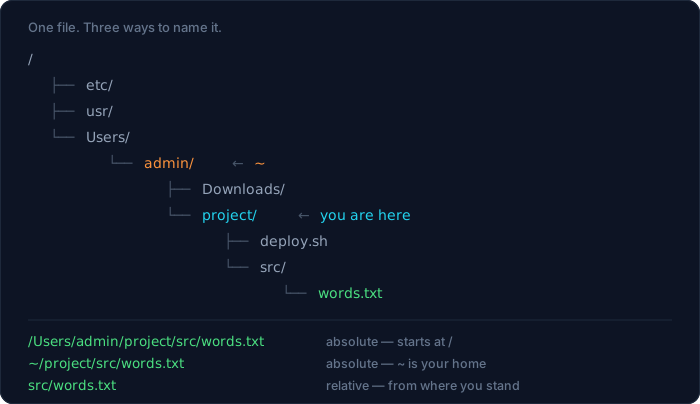
An absolute path starts at /, the root of the filesystem, and works from anywhere: /Users/admin/project/src/words.txt means the same thing no matter where you are standing. A relative path starts from your current directory: src/words.txt only means something when you're already in project.
Four shortcuts do most of the work:
| Shortcut | Means | Example |
|---|---|---|
~ |
your home directory | cd ~/Downloads |
. |
the directory you're in | ./deploy.sh |
.. |
one directory up | cd ../.. goes up two |
- |
the directory you were in before | cd - toggles back |
cd with no argument goes home. cd - is the one people don't know and use constantly once they do — it's the alt-tab of directories.
Tab completion is the actual skill
Type three characters and press Tab. The shell finishes the name. Press Tab twice and it lists the options when there's more than one match. This is not a convenience, it's the difference between the command line being pleasant and being a typing exam. Never type a full filename again — and as a bonus, if Tab doesn't complete, the thing you're about to reference doesn't exist, which you would rather learn now than after pressing Enter.
When you don't know: man, --help, and how to guess well
This is the meta-skill, and it's worth putting before the rest, because nobody remembers flags — people remember how to look them up in four seconds.
man ls          # the full manual, in less: / to search, q to quit
ls --help       # the short version… on Linux
man opens the manual page in less, so every key you learned there applies: /recursive then Enter jumps to the first mention, n for the next, q to leave. The bit worth knowing is the SYNOPSIS block at the top, which tells you what's optional (square brackets) and what repeats (...), and the DESCRIPTION list of flags below it.
--help is faster when it works, and on macOS it often doesn't:
$ ls --help
ls: unrecognized option `--help'
usage: ls [-@ABCFGHILOPRSTUWXabcdefghiklmnopqrstuvwxy1%,] … [file ...]
BSD tools reject --help and print a usage line instead — which, annoyingly, is still the answer you wanted. GNU tools on Linux print several screens of real help. Either way you learn something, so try --help first and fall back to man.
Three more lookups that cover the rest:
man -k compress        # search all manuals by keyword — "apropos"
type -a cmd            # is this a binary, a builtin, an alias, a function?
help set               # builtins have no man page (zsh: run-help set)
That last one catches people out: set, cd, export and trap are built into the shell, so man set shows you the wrong thing (a POSIX summary) or nothing useful. help set in bash is what you want.
If you want the modern shortcut, tldr (brew install tldr, npm i -g tldr) prints five real examples instead of forty flags — the thing you actually wanted from man most days. It needs installing, so it's a comfort, not a skill; man is on every machine you will ever log into.
And when guessing: -h almost always means human-readable sizes, -r recursive or reverse depending on the tool, -v verbose, -f force, -n dry-run-ish or numeric. Almost always. The reason to check rather than assume is that -f means "force" to rm and "file" to tar, and one of those two mistakes is expensive.
Reading ls -l properly
ls alone gives you names. ls -l gives you the long form, and ls -la includes hidden files (the ones starting with ., which is where every tool keeps its config). Real output:
$ ls -la project
total 8
drwxr-xr-x@ 6 admin  wheel  192 Jul 30 08:38 .
drwxr-xr-x@ 3 admin  wheel   96 Jul 30 08:38 ..
-rwxr-xr-x@ 1 admin  wheel   28 Jul 30 08:38 deploy.sh
drwxr-xr-x@ 2 admin  wheel   64 Jul 30 08:38 docs
drwxr-xr-x@ 3 admin  wheel   96 Jul 30 08:38 logs
drwxr-xr-x@ 3 admin  wheel   96 Jul 30 08:38 src
Left to right: permissions, link count, owner, group, size in bytes, last modified, name. That @ after the permissions is macOS-specific — it means the file has extended attributes (where quarantine flags and Finder tags live). On Linux you won't see it.
The permission column looks like line noise until someone spaces it out for you:
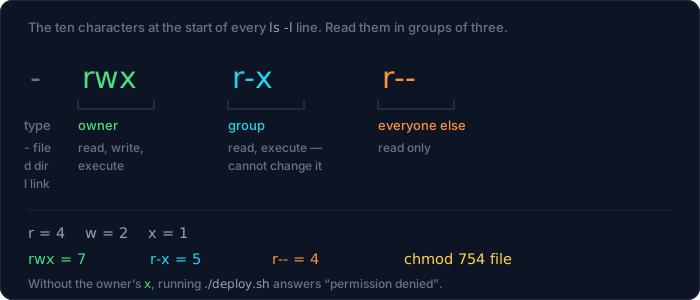
The diagram's example, -rwxr-xr--, is octal 754. The deploy.sh in the listing above is -rwxr-xr-x, which is 755: same owner rights, but everyone else can execute it too. chmod is how you change them, and the numeric form is worth memorising because it's what you'll see in every Dockerfile and CI script:
chmod +x deploy.sh        # add execute for everyone who can already read it
chmod 755 deploy.sh       # rwx for owner, r-x for group and others
chmod 600 ~/.ssh/id_ed25519   # owner only — SSH rejects a key others can read
If you want the octal number of a file that already exists, the flags differ by platform — this is the first of several places where macOS is not Linux:
stat -f "%Sp %p %N" deploy.sh    # macOS  → -rwxr-xr-x 100755 deploy.sh
stat -c "%A %a %n"  deploy.sh    # Linux  → -rwxr-xr-x 755 deploy.sh
A directory needs x to be entered at all — read without execute means you can list the names and open nothing. That's the usual explanation for "permission denied" on a path that clearly exists.
Making, moving, and deleting things
mkdir docs                    # one directory
mkdir -p build/css/vendor     # the whole chain, no complaints if it exists
touch notes.md                # create an empty file (or bump its timestamp)
cp notes.md notes.bak         # copy
cp -R src/ backup/            # copy a directory and everything inside
mv notes.md docs/             # move into docs/
mv notes.md README.md         # …and with a new name, that's a rename
rm notes.bak                  # delete, permanently, no Trash
rm -r build/                  # delete a directory and its contents
Two habits worth forming on day one.
mkdir -p over mkdir. It creates intermediate directories and stays quiet if the target already exists, which makes it safe to run twice — the property you want in anything scripted.
Think before rm -rf. There is no undo, no Trash, no confirmation. rm -rf deletes recursively and forcibly, and the classic disaster is a stray space: rm -rf / opt/old is not rm -rf /opt/old. Three defences, in order of usefulness: use ls with the same glob first to see what matches, keep destructive deletes off one-liners you're pasting from the internet, and on macOS reach for trash (brew install trash) when you want reversible.
Brace expansion saves a surprising amount of typing, and it's the shell doing it, so it works with any command:
$ echo file-{1..4}.txt
file-1.txt file-2.txt file-3.txt file-4.txt

$ mkdir -p demo/{a,b}/logs
$ find demo -type d
demo
demo/a
demo/a/logs
demo/b
demo/b/logs
Globs are the other half of that: * matches any run of characters, ? matches exactly one, ** matches across directories in zsh (and in bash with shopt -s globstar).
$ echo demo/a/*.log
demo/a/one.log demo/a/two.log
$ echo demo/a/?ne.log
demo/a/one.log
The shell expands these before the command runs. rm *.log never sees *.log — it receives the actual list of filenames. Which is why an unexpected match is dangerous, and why echo in front of a destructive command is a free dry run.
Looking inside files
cat access.log            # dump the whole thing
less access.log           # page through it — q to quit, / to search, G for end
head -20 access.log       # first 20 lines
tail -20 access.log       # last 20
tail -f access.log        # last lines, then keep printing new ones
wc -l access.log          # count lines
cat is for short files. On a 400MB log it will fill your terminal for a minute and teach you Ctrl-C. less is the one to reach for: arrow keys and Space to move, /pattern then Enter to search, n for the next hit, G for the end, q to quit. (less is also what git log and man pipe into, so those keys work in more places than you'd think.)
tail -f is the one you'll use in anger. It follows a file as it grows, which is how you watch a server log while reproducing a bug:
$ tail -f live.log
line1
line2 arrives later
The first two lines print immediately; the third appeared while tail was watching. Ctrl-C stops it. In 2026 the better version is tail -F (capital F) — it survives log rotation, where the file gets renamed out from under you and a plain -f sits there watching a file nobody writes to any more, showing you nothing and looking exactly like "no errors".
wc counts:
$ wc -l logs/access.log
       4 logs/access.log
$ wc -lwc src/words.txt
       4       4      26 src/words.txt
Lines, words, characters. wc -l at the end of a pipeline is the fastest way to turn "which files match" into "how many files match".
Editing a file without leaving the terminal
At some point you will SSH into a server to change one line in a config file, and there is no VS Code there. Two editors are on essentially every Unix machine, including macOS:
$ command -v nano vim
/usr/bin/nano
/usr/bin/vim
Use nano unless you have a reason not to. It shows its own keybindings along the bottom of the screen, so it needs no prior knowledge:
nano nginx.conf
Ctrl-O then Enter writes the file (nano calls it "WriteOut"), Ctrl-X exits, Ctrl-K cuts a line, Ctrl-W searches, Ctrl-\ search-and-replaces. The ^ in nano's help bar means Ctrl. That's genuinely all you need for config edits.
vim is the other one, and you need three commands purely as survival gear, because sooner or later something drops you into it — git commit with no -m, or a visudo — and a stuck editor with no visible instructions is a bad first impression:
i           → insert mode, you can now type
Esc         → back to command mode
:wq  Enter  → write and quit
:q!  Enter  → quit, discarding changes
If you remember only one thing: Esc then :q! gets you out of anything. Beyond that, vim is a real investment with a real payoff, and there is no obligation to make it today.
One habit for editing files that matter: copy before you edit, especially on a server.
cp nginx.conf nginx.conf.bak     # 2 seconds
nano nginx.conf
nginx -t                         # validate BEFORE reloading
For a one-line change in a script, sed -i (careful, see the platform note below) or >> to append is often faster than opening an editor at all:
echo 'export EDITOR=nano' >> ~/.zshrc
Note >> and not >. One appends; the other replaces the entire file with your one line. That mistake has eaten a lot of shell configs — including, once, mine.
Finding things
Two commands, and they answer different questions. find searches by name and metadata. grep searches by content.
find . -name "*.log"                 # by name, recursively, from here
find . -type d -name node_modules    # only directories
find . -name "*.tmp" -mtime +7       # modified more than 7 days ago
find . -maxdepth 2 -type f           # don't dig deeper than two levels
grep "ERROR" app.log                 # lines containing ERROR
grep -i "error" app.log              # case-insensitive
grep -rn "TODO" src/                 # recursive, with line numbers
grep -c "GET" access.log             # just the count
grep -w "id" schema.sql              # whole word — not "idempotent"
grep -v "healthcheck" access.log     # invert: lines that do NOT match
grep -rn --include="*.ts" "prisma" . # only TypeScript files
grep -rn is the single most useful invocation in the set — recursive with line numbers, so the output is a list of file:line: you can jump straight to. Real output:
$ grep -rn "alpha" src/
src/words.txt:1:alpha
src/words.txt:4:alpha
grep -c counts matching lines, not matches, which is a difference that will eventually bite you when two hits share a line.
A note about regular expressions, because it's where portability bites hardest. grep speaks POSIX basic regex by default, grep -E speaks extended (where +, ?, | and () work without backslashes), and grep -P speaks Perl regex — except macOS's BSD grep has no -P at all:
$ /usr/bin/grep -cP '\d' <<< 'a1'
grep: invalid option -- P
GNU grep on Linux answers 1. If you want one spelling that works on both, use POSIX character classes: [[:digit:]], [[:space:]], [[:alpha:]]. They are uglier than \d and \s, and they are the reason your script won't break when it runs somewhere else.
One more portability trap, this time in find. GNU find lets you leave the path out and assumes .; BSD find does not:
$ /usr/bin/find -name "*.txt"
find: illegal option -- n
Always pass the directory: find . -name "*.txt".
If you spend your days searching code, install ripgrep (brew install ripgrep, apt install ripgrep). rg pattern is recursive by default, skips .gitignored paths and binaries, and is fast enough that you stop narrowing the search first. It's the one modern replacement in this guide I'd call non-optional — but learn grep anyway, because rg won't be installed on the server you're debugging at 2am.
Plumbing: pipes and redirection
This is the idea that makes the whole thing more than a list of commands. Every program gets three wires, and you can plug them into other programs or into files.
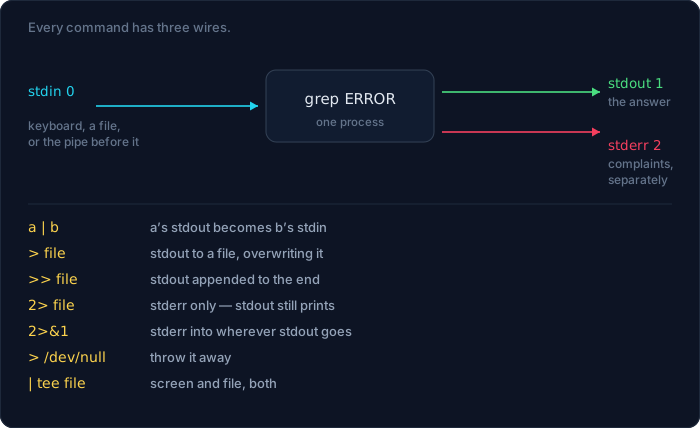
A pipe (|) connects one program's output to the next one's input. Nothing touches disk, and each stage starts producing before the previous one finishes:
$ awk '{print $3}' logs/access.log | sort | uniq -c | sort -rn
   2 200
   1 500
   1 401
Four small programs, one question answered: which HTTP status codes appear, and how often. awk pulled out the third column, sort grouped identical lines together, uniq -c counted each run, and sort -rn put the biggest number on top. None of them knows anything about HTTP. That's the point — small tools, plain text between them.
Redirection points a stream at a file instead:
command > out.txt        # stdout to a file, replacing it
command >> out.txt       # stdout appended
command 2> err.txt       # stderr only
command > all.txt 2>&1   # stdout to file, then stderr to the same place
command > /dev/null      # discard stdout
command 2>/dev/null      # discard errors, keep the answer
The important thing is that stdout and stderr are separate, which is why this happens:
$ ls nope 2>/dev/null
$ echo $?
1
Nothing printed — the error message went to the bin — but the exit code is still 1. Errors travelling on their own wire is what lets you keep a clean data pipeline and still see the complaints, or the reverse: silence the noise and check the exit code, which is what a script should do.
Speaking of which, $? is the exit code of the last command: 0 means success and anything else means failure. command -v node returning 0 is how scripts check "is this installed" without parsing text.
Two more connectors that earn their keep:
$ curl -s -o /dev/null -w "%{http_code}\n" \
      https://cuongthai.com/api/v1/tech-trends/articles
200
That's the whole "is this route actually live" check — throw the body away, print only the status. 200 or 401 means the route is mounted; 404 means it isn't. I use this constantly to tell a real outage apart from an endpoint that was never deployed.
And tee, when you want to watch something and keep it:
npm run build 2>&1 | tee build.log # on screen and in a file
xargs, and a difference that will bite you
xargs turns a list of lines into arguments for another command:
$ find . -name "*.txt" -print0 | xargs -0 wc -l
       4 ./src/words.txt
-print0 and -0 pair up to separate names with a NUL byte instead of whitespace, which is the only version that survives filenames with spaces in them. Use them together as one idiom.
Now the trap. What does xargs do when the input is empty? The two implementations disagree:
# macOS (BSD xargs) — prints nothing, exit 0
$ printf '' | xargs echo "HI"

# Debian (GNU xargs) — runs the command anyway, with no arguments
$ printf '' | xargs echo "HI"
HI
GNU needs xargs -r (--no-run-if-empty) to behave the way BSD already does. Modern macOS accepts -r and ignores it harmlessly, so xargs -r is the portable spelling — which is why you see it in idioms like lsof -ti:3000 | xargs -r kill -9. Without -r on Linux, an empty result runs kill -9 with no arguments, and you get a confusing usage error instead of nothing happening.
Text is the interface
The reason those small programs compose is that they all speak the same format: lines of text. It's worth knowing five of them properly.
sort orders lines. -n for numeric (so 9 comes before 10), -r to reverse, -u to drop duplicates, -k2 to sort by the second field.
uniq collapses adjacent duplicate lines — which is why it almost always follows sort. uniq -c prefixes counts, uniq -d shows only the duplicated ones.
$ sort src/words.txt | uniq -c
   2 alpha
   1 bravo
   1 charlie
cut slices columns by delimiter:
$ echo "root:x:0:0:System Administrator:/var/root:/bin/sh" | cut -d: -f1,7
root:/bin/sh
tr translates or deletes characters — most often to split on a delimiter or strip whitespace:
$ echo "$PATH" | tr ':' '\n' | head -4
/Users/admin/.fly/bin
/Users/admin/.nvm/versions/node/v22.21.0/bin
/opt/homebrew/bin
/opt/homebrew/sbin
sed edits a stream. You'll use exactly one form of it 90% of the time — substitute:
$ sed 's/GET/FETCH/' logs/access.log | head -2
FETCH /api 200 12ms
FETCH /api 500 91ms
s/old/new/ replaces the first match per line; s/old/new/g replaces all of them. Add -E if you want extended regex.
Then there's sed -i, edit-the-file-in-place, and it is the single worst portability trap in daily use. BSD sed (macOS) requires an argument for the backup suffix; GNU sed (Linux) treats the next thing as the script:
# macOS — the empty string means "no backup file"
$ sed -i '' 's/200/OK/' access.log        ✓

# macOS, GNU spelling — 's/200/OK/' is taken as the backup suffix,
# and the FILENAME is then read as the sed script
$ sed -i 's/200/OK/' access.log
sed: 1: "access.log
": command a expects \ followed by text

# Linux
$ sed -i 's/200/OK/' access.log           ✓
Look closely at what BSD sed is complaining about: it is trying to interpret access.log as a program, and the a it starts with happens to be sed's append command. Change the filename and the error changes with it — run the same mistake on /tmp/out.log and you get unescaped newline inside substitute pattern instead, because now the script starts with / and sed reads it as an address. Neither message contains the words "backup" or "-i", which is why people lose twenty minutes to this. If you need one line for both platforms, write the backup suffix explicitly and delete it after — or just use perl -pi -e 's/old/new/', which behaves identically everywhere.
awk is a small language, and two forms of it cover most needs: print a column (awk '{print $3}'), and filter then print (awk '$3 == "500" {print $2}'). Fields are $1, $2, … and $0 is the whole line. Set the separator with -F: when the file isn't space-delimited. When an awk one-liner grows past a line and a half, that's the signal to switch to a real script in a real language — nobody wants to maintain a paragraph of awk, including you.
Processes: what's running, and how to stop it
ps aux                  # every process, with CPU and memory
ps aux | grep node      # …the ones you care about
top                     # live view; q to quit (htop is nicer, brew install htop)
kill 12345              # ask process 12345 to shut down (SIGTERM)
kill -9 12345           # make it stop, now, no cleanup (SIGKILL)
Always try kill before kill -9. Plain kill sends SIGTERM, which a well-behaved program catches to flush writes and close connections; -9 sends SIGKILL, which it cannot catch. Reaching for -9 first is how you get a corrupted database file or a stale lock nobody cleans up.
To find the process you actually want, the reliable question is usually not "what's it called" but "who has my port":
$ lsof -ti:3000
70804
72043
80275
lsof -ti:<port> lists the PIDs holding that port, one per line, which pipes straight into kill:
lsof -ti:3000 | xargs -r kill -9
I keep that in muscle memory because of a real afternoon lost to the alternative. Killing a Node dev server by name — pkill -f "next start" — matched nothing, over and over, because Node renames its own process to next-server. The old server kept the port, the new one died on EADDRINUSE, and the symptom looked like unfixable code rather than two processes fighting. Ports are a fact about the system; process names are a string a program can change.
Foreground and background:
npm run dev             # holds the terminal
Ctrl-C                  # stop it
Ctrl-Z                  # suspend it, get the prompt back
bg                      # resume it in the background
fg                      # bring it back to the foreground
jobs                    # what have I suspended or backgrounded
npm run dev &           # start in the background straight away
nohup npm start &       # keep running after I close the terminal
Ctrl-C and Ctrl-Z look similar and are not: Ctrl-C kills, Ctrl-Z pauses. A suspended job is stopped, not running — people suspend a dev server, wonder why the site stopped responding, and never connect the two.
While you're here: disk space
Two commands, and they answer different questions. df is about the filesystem; du is about a directory.
$ df -h .
/dev/disk3s5   926Gi   315Gi   583Gi    36%   /System/Volumes/Data

$ du -sh project
 16K	project

$ du -sh project/* | sort -h | tail -3
4.0K	project/deploy.sh
4.0K	project/logs
4.0K	project/src
df -h is the first thing to run when a server starts behaving strangely — a database that won't accept writes and an "inexplicable" 500 are often just a full disk. du -sh */ | sort -h then tells you which directory ate it; sort -h understands K/M/G suffixes, which plain sort -n does not. On this project's VPS the answer has twice been Docker build cache, which docker system prune -af reclaims.
For anything that must outlive your SSH session, nohup … & is the floor and tmux is the real answer: tmux new -s work to start a named session, Ctrl-B then d to detach, tmux attach -t work to come back — including from a different computer.
Your environment, and the config files that shape it
Environment variables are settings the shell hands to every program it starts:
$ echo $HOME
/Users/admin
$ echo $PATH | tr ':' '\n' | head -3
/Users/admin/.fly/bin
/Users/admin/.nvm/versions/node/v22.21.0/bin
/opt/homebrew/bin
$ export API_URL="http://localhost:3001"    # set for this shell and its children
$ unset API_URL
PATH is the one that matters most. It's an ordered list of directories the shell searches for a command, and first match wins. That ordering is not trivia. On this machine:
$ /usr/bin/grep --version
grep (BSD grep, GNU compatible) 2.6.0-FreeBSD
$ grep --version
ugrep 7.5.0 aarch64-apple-macosx
Two different programs, both called grep. Homebrew's /opt/homebrew/bin sits earlier in PATH than /usr/bin, so an installed ugrep shadows the system one — and a script that relies on a flag only one of them supports now behaves differently depending on whose laptop runs it. When output surprises you, ask which binary you're actually running:
command -v grep     # the path that would run (bare name = builtin or function)
type -a grep        # every match: aliases and functions first, then PATH
which -a grep       # similar, but in zsh it can miss shell functions
If command -v prints a bare word instead of a path, that's your answer already: something in your config is shadowing the real binary.
type beats which because it also reveals aliases and shell functions, and those shadow real binaries without appearing in PATH at all.
To make a setting stick, put it in your shell's startup file. Which file depends on your shell, and getting this wrong is a rite of passage:
| Shell | File to edit | Notes |
|---|---|---|
| zsh (macOS default) | ~/.zshrc |
read by every interactive shell |
| bash (most Linux) | ~/.bashrc |
interactive shells |
| bash (login shells, incl. macOS Terminal) | ~/.bash_profile |
commonly just sources ~/.bashrc |
# ~/.zshrc
export PATH="$HOME/.local/bin:$PATH"        # prepend — my binaries win
export EDITOR="nano"
alias gs="git status -sb"
alias ll="ls -lah"
alias ports="lsof -nP -iTCP -sTCP:LISTEN"   # what is listening, and on what
Reload with source ~/.zshrc or by opening a new tab. Two rules that save grief: put $PATH back into the value you export (PATH="new:$PATH", never just PATH="new", which strips everything and leaves you with a shell that can't find ls), and keep aliases short and non-destructive. Aliasing rm to rm -i feels safe until you're on a machine that doesn't have your alias, and you've trained your fingers on a prompt that no longer appears.
Typing less: history and the keys that matter
The command line rewards a handful of keystrokes far more than it rewards memorising commands.
| Keys | Does |
|---|---|
Tab |
complete a name; twice to list matches |
↑ / ↓ |
walk through previous commands |
Ctrl-R |
search history — type a fragment, Ctrl-R again for older matches, Enter to run |
Ctrl-A / Ctrl-E |
jump to start / end of the line |
Ctrl-W |
delete the word before the cursor |
Ctrl-U |
clear the whole line (bash: to start of line) |
Ctrl-L |
clear the screen, keep what you've typed |
Ctrl-C |
abandon the current command or line |
Ctrl-D |
end of input — closes the shell if the line is empty |
Ctrl-R is the one to learn today. You don't need to remember that long docker run incantation; you need to remember two words from the middle of it.
Then there's history expansion, which feels like a party trick until it's muscle memory:
sudo !!            # re-run the last command with sudo — for when you forgot
history | grep rsync               # what was that rsync flag I used last week

mkdir -p build/css
cd !$              # !$ = last argument of the PREVIOUS command → build/css
One caveat that trips people: !$ refers to the command before the one you're typing, so it does not work inside the same line — mkdir -p build/css && cd !$ reaches back to whatever you ran before that, which is rarely what you meant. For same-line use there's $_, an ordinary variable holding the last argument, and it works in both shells:
mkdir -p /tmp/hx/build/css
cd $_ && pwd       # → /tmp/hx/build/css
A script you'd actually trust
Everything so far has been typed at a prompt. A script is the same commands in a file, and the jump is smaller than it looks — but there are four lines of ceremony that separate a script that fails loudly from one that fails silently and leaves a mess.
Here is a complete, working one. It archives a directory and keeps only the three most recent archives:
#!/usr/bin/env bash
# backup.sh — archive a directory, keep the last 3 archives.
set -euo pipefail

SRC="${1:?usage: backup.sh <directory> [dest]}"
DEST="${2:-./backups}"

[[ -d "$SRC" ]] || { echo "not a directory: $SRC" >&2; exit 2; }

mkdir -p "$DEST"
stamp=$(date +%Y%m%d-%H%M%S)
archive="$DEST/$(basename "$SRC")-$stamp.tgz"

tmp=$(mktemp -d)
trap 'rm -rf "$tmp"' EXIT

tar -czf "$tmp/out.tgz" -C "$(dirname "$SRC")" "$(basename "$SRC")"
mv "$tmp/out.tgz" "$archive"
echo "wrote $archive ($(du -h "$archive" | cut -f1))"

ls -1t "$DEST"/*.tgz | tail -n +4 | xargs -r rm -f
echo "keeping $(ls -1 "$DEST"/*.tgz | wc -l | tr -d ' ') archive(s)"
Run it:
$ ./backup.sh
./backup.sh: line 5: 1: usage: backup.sh <directory> [dest]

$ ./backup.sh nope
not a directory: nope

$ ./backup.sh project
wrote ./backups/project-20260730-084939.tgz (4.0K)
keeping 1 archive(s)

$ ./backup.sh project && ./backup.sh project && ./backup.sh project
keeping 2 archive(s)
keeping 3 archive(s)
keeping 3 archive(s)
Now the pieces, in the order they earn their place.
The shebang
#!/usr/bin/env bash — the first line tells the kernel which interpreter to use. #!/usr/bin/env bash finds bash via PATH rather than hardcoding /bin/bash, which matters on macOS: /bin/bash is bash 3.2 from 2007 (Apple froze it over licensing), while a Homebrew bash 5 lives in /opt/homebrew/bin. Scripts using mapfile or associative arrays work with one and not the other. And make it executable, or ./backup.sh answers "permission denied":
chmod +x backup.sh
set -euo pipefail
Four safety switches. Without them, a shell script's default behaviour is to shrug at errors and keep going, which is how a failed build step still ends with "deploy complete".
#!/usr/bin/env bash
false
echo "still running (no set -e) — last exit code was $?"
still running (no set -e) — last exit code was 1
With set -e, the script stops at false and never reaches the echo. -u turns an unset variable into an error instead of an empty string:
$ ./u.sh
./u.sh: line 3: TARGET: unbound variable
That one line prevents the worst class of shell bug: rm -rf "$BUILD_DIR/" where BUILD_DIR is empty expands to rm -rf /.
-o pipefail makes a pipeline fail when any stage fails, not just the last one:
set -e
false | true          # exit code 0 — the failure vanished
set -o pipefail
false | true          # exit code 1 — now the pipeline is a failure
Without pipefail, curl … | tar -xz reports success when the download failed and tar cheerfully extracted nothing.
One caveat, learned the hard way in this project's own deploy script: with set -e, an && chain whose left side is false makes the script exit non-zero. [ "$ok" = false ] && fail "…" looks like a guard clause and behaves like a self-destruct button — when $ok isn't false, the test fails, the chain returns 1, and set -e kills a deploy that was going fine. Use if for guards. && is for "do this then that", not for control flow.
Quotes
The rule is simple and unforgiving: quote every variable expansion. Without quotes the shell splits the value on spaces and then expands globs in it.
f="my report.txt"
rm $f       # tries to delete TWO files: "my" and "report.txt"
rm "$f"     # deletes one file
rm: my: No such file or directory
rm: report.txt: No such file or directory
Same for arguments: "$@" passes them through exactly as received, while $@ re-splits them:
./q.sh "two words" single
count=2
  [two words]
  [single]
Then there's ${1:?message} — use argument 1, or exit with that message — and ${2:-default}, use argument 2 or fall back. Those two constructs replace a dozen lines of if [ -z "$1" ] and cannot be forgotten.
trap for cleanup
tmp=$(mktemp -d)
trap 'rm -rf "$tmp"' EXIT
trap … EXIT runs when the script exits — success, failure, or Ctrl-C. Combined with mktemp, that's the whole pattern for temporary files: the cleanup is registered one line after the thing that needs cleaning, so there is no path out of the script that leaks it. It fires on the error exits too:
$ ./t.sh
using tmp: /var/folders/vz/1ssh…/T/tmp.9IJRHyEieu
cleanup: removing /var/folders/vz/1ssh…/T/tmp.9IJRHyEieu
$ echo $?
3
Debugging a script
bash -x script.sh (or set -x inside it) prints every command after expansion, right before it runs — so you see the actual values, not the source:
+ cp demo/a/one.log demo/b/
Nine times out of ten the bug is visible in that echoed line: an empty variable, a path that isn't what you thought, a glob that matched nothing. And when a script is genuinely worth keeping, run it past shellcheck (brew install shellcheck) — it catches unquoted expansions and a hundred subtler things before production does.
Other people's machines
The commands don't change when the computer is somewhere else, which is most of the reason this skill compounds.
ssh admin@203.0.113.10                  # log in
ssh -i ~/.ssh/id_ed25519 admin@host     # with a specific key
ssh admin@host 'df -h /'                # run one command and come straight back
Copying files, two options with different jobs:
scp report.pdf admin@host:~/            # simple, one-shot copy
rsync -avz --progress ./dist/ admin@host:/var/www/app/    # sync a directory
rsync transfers only what differs, keeps permissions and timestamps with -a, compresses in flight with -z, and — the flag that matters most — supports --dry-run, so you can see the plan before it happens:
$ rsync -a --dry-run --itemize-changes demo/a/ demo/copy/
cd+++++++ ./
>f....... one.log
>f....... two.log
cd+++++++ logs/
>f means a file would be sent, cd means a directory would be created. Get in the habit: --dry-run first, then the same command without it. The trailing slash on the source matters too — dist/ copies the contents, dist copies the directory itself into the target.
Archives, for when you'd rather move one file:
tar -czf site.tgz site/        # create, gzip, into site.tgz
tar -tzf site.tgz              # list contents without extracting
tar -xzf site.tgz              # extract
tar -xzf site.tgz -C /tmp/out  # extract somewhere specific
-t before -x is a small ritual worth keeping: some archives unpack into a folder, some spray forty files into your current directory.
And sudo, briefly. It runs one command as root. Type your password, get five minutes of grace, and stay suspicious the whole time — sudo is how a typo goes from annoying to unrecoverable. Two rules: never sudo a command you copied without reading it, and if a tutorial tells you to sudo npm install -g, it's out of date (use a version manager like nvm or fnm, no root required).
The five error messages you'll actually see
Shell errors are terse but honest. Once you can map them to a cause, most of the frustration evaporates. These are the exact strings, from a real terminal.
command not found
zsh:1: command not found: gti          # zsh
bash: gti: command not found            # bash
Either a typo, or the program isn't installed, or it's installed somewhere that isn't in PATH. In that order of likelihood. Check with type -a gti, then ls /opt/homebrew/bin | grep git. The PATH case is common right after installing something — a new shell picks it up, the one you're in may not.
permission denied
zsh: permission denied: ./noexec.sh
The file exists; you just can't run it. Almost always a missing execute bit: chmod +x ./noexec.sh. If it's a file you're trying to write rather than run, you're either not the owner (ls -l will say who is) or you're in a directory you don't own — /usr/local and /opt are the usual suspects, which is where sudo starts being tempting and where a version manager is a better answer.
No such file or directory
cat: missing.txt: No such file or directory
The name is wrong, or you're in the wrong directory, or the path is relative when you meant absolute. pwd then ls answers all three in two seconds. The sneaky version is a trailing space or a smart quote pasted from a webpage — if a name looks right and isn't found, retype it with Tab completion instead of pasting.
Is a directory / Not a directory
cat: project: Is a directory
cd: not a directory: project/deploy.sh
You pointed a file command at a directory or vice versa. ls when you meant cat, or a path with one component too many.
Address already in use / EADDRINUSE
Not a shell error, but the one you'll hit most as a developer: something is already on the port. This is where lsof -ti:3000 earns its place — find the holder, decide whether to kill it, and don't guess by process name.
The general shape of debugging here: read the message literally, ask which of the three things it could be (wrong name, wrong place, wrong permission), and check with pwd, ls -l, and type -a. Those three commands answer nearly every one of these.
The portability tax: macOS is not Linux
macOS ships BSD userland tools; Linux ships GNU. The names match, the flags don't always. Every row below was verified on both — macOS 26 and Debian 12 in a container — because this table is exactly the kind of thing guides get wrong.
| Task | macOS (BSD) | Linux (GNU) |
|---|---|---|
| Edit in place | sed -i '' 's/a/b/' f |
sed -i 's/a/b/' f |
| Perl regex in grep | not available — no -P |
grep -P '\d' |
| Portable regex classes | grep '[[:digit:]]' |
same — use this |
find with no path |
error: illegal option |
defaults to . |
| Yesterday's date | date -v-1d +%F |
date -d yesterday +%F |
| Octal permissions | stat -f "%Sp %p" f |
stat -c "%A %a" f |
xargs, empty input |
doesn't run the command | runs it once — add -r |
| Bundled bash | 3.2 at /bin/bash |
5.x |
Two escape hatches when you need one script for both. Install the GNU versions on macOS (brew install coreutils gnu-sed findutils gives you gsed, gfind, gdate, and optionally the un-prefixed names on your PATH) — good for your own machine, useless on a colleague's. Or stick to the intersection: POSIX classes instead of \d, no sed -i, find always with a path. The second is more work up front and it's the one that survives contact with a CI runner.
Cheat sheet
| Question | Command |
|---|---|
| Where am I? | pwd |
| What's here, in detail? | ls -la |
| Go somewhere / back | cd path · cd - |
| Make a directory chain | mkdir -p a/b/c |
| Copy a directory | cp -R src/ dest/ |
| Rename | mv old new |
| Read a big file | less file |
| Watch a log grow | tail -F file |
| Count lines | wc -l file |
| Find by name | find . -name "*.log" |
| Find by content | grep -rn "text" . |
| Which binary is this? | type -a cmd |
| What's on port 3000? | lsof -ti:3000 |
| Stop it | kill PID then kill -9 PID |
| Disk space | df -h / · du -sh dir |
| Is this URL alive? | curl -s -o /dev/null -w "%{http_code}\n" URL |
| Top values in a column | awk '{print $3}' f | sort | uniq -c | sort -rn |
| Copy a tree to a server | rsync -avz --dry-run ./dist/ host:/path/ |
| Re-run with sudo | sudo !! |
| Search my history | Ctrl-R |
Where to go next
Pick one real task this week and do it in the terminal instead of the GUI — clone a repo, tail a log, rename a batch of files. The commands stick when they're attached to something you wanted done.
If you want structure after that, three places on this site continue directly from here:
- Code Lab — the Linux track is graded exercises in a real shell, which is the only way this becomes automatic. Bash scripting, permissions, processes, text processing.
- Exp Hub — the snippets and setup guides I actually use: shell config, SSH keys, Docker one-liners, machine setup from scratch.
- Node.js from Zero to Production — 19 chapters where the command line stops being the subject and becomes the tool: npm, environment variables, systemd, deploys, reading production logs.
And one habit worth more than any of them: when a command surprises you, don't move on. Run type -a on it, check --help, try it in an empty directory. Every one of those five-minute detours is why the person next to you seems to guess right.
Bài liên quan
Chuyên sâu
Tôi tự xây một công cụ kiểu Jira: CT Work sau 21 ngày, 113 commit và mười lỗi đã trả giá
Nhật ký kỹ thuật của CT Work, công cụ quản lý dự án và đồ án sinh viên FPT dùng thật: kiến trúc và mã thật, AI agent qua MCP, số đo bằng lệnh (243 model, 68 trang, 1.514 ca test), mười lỗi đã sửa, mẹo dùng — và khi nào không nên dùng.
Chuyên sâu
AI Code: agent lập trình trong app desktop — cách dựng, lỗi đã gặp, và cách dùng cho đáng tiền
Agent lập trình trong app desktop CuongThai: kiến trúc và mã thật, 174 commit trong 48 ngày, 9 lỗi đã gặp và cách sửa, vì sao giá một lượt không nói lên giá trong vòng lặp gọi tool, mẹo chọn model — và khi nào KHÔNG nên dùng.
Chuyên sâu
Mã hoá cho lập trình viên: AES, RSA, chữ ký số — và vì sao đừng bao giờ tự viết thuật toán
Bắt đầu từ một file bài thi .dat mở ra không được: entropy 7,99 nói lên điều gì, vì sao dò khoá AES là bất khả thi về mặt VẬT LÝ chứ không phải "rất khó", AES khác RSA ra sao (đo thật: chênh ~1.520 lần). Kèm thí nghiệm ECB làm lộ nguyên hình ổ khoá và sáu vụ sập kinh điển.
Chuyên sâu
Có bao nhiêu loại cơ sở dữ liệu — và chọn cái nào cho việc gì
"SQL hay NoSQL" là phép chia sai: một vế là ngôn ngữ, vế kia nghĩa đen là "không phải cái kia". Bài này chia lại theo mô hình dữ liệu (11 loại), theo tải công việc và theo cách triển khai; giải thích ACID, mức cô lập, write skew, CAP bị hiểu sai ở đâu, B-tree so với LSM-tree; kèm cây quyết định, mười sai lầm hay gặp, và hồ sơ thật của chính trang này — 248 bảng trên một Postgres, một VPS 6GB.
Bình luận